IW3 Bot Warfare
Bot Warfare adds playable AI bots to Call of Duty 4 multiplayer.
The original mod was created by INeedGames. This port runs through the codxe plugin.
What You Need
Section titled “What You Need”- A genuine copy of Call of Duty 4: Modern Warfare
- The game extracted to a normal folder
- The latest Call of Duty 4 title update: TU4
- One of these setups:
- An Xbox 360 that can run unsigned code: XDK, RGH, JTAG, or BadUpdate
- Xenia Canary Netplay on Windows
Prepare The Game
Section titled “Prepare The Game”Extract Call of Duty 4 to a normal folder.
Do not use:
- GOD / Games on Demand format
- ISO format
Your game folder should contain the normal game files, such as default_mp.xex.
Install codxe on Xbox 360
Section titled “Install codxe on Xbox 360”codxe is required. Bot Warfare will not load without it.
Download the plugin:
Download codxe
Set codxe.xex as a DashLaunch plugin.
Your plugin setup should look similar to this:
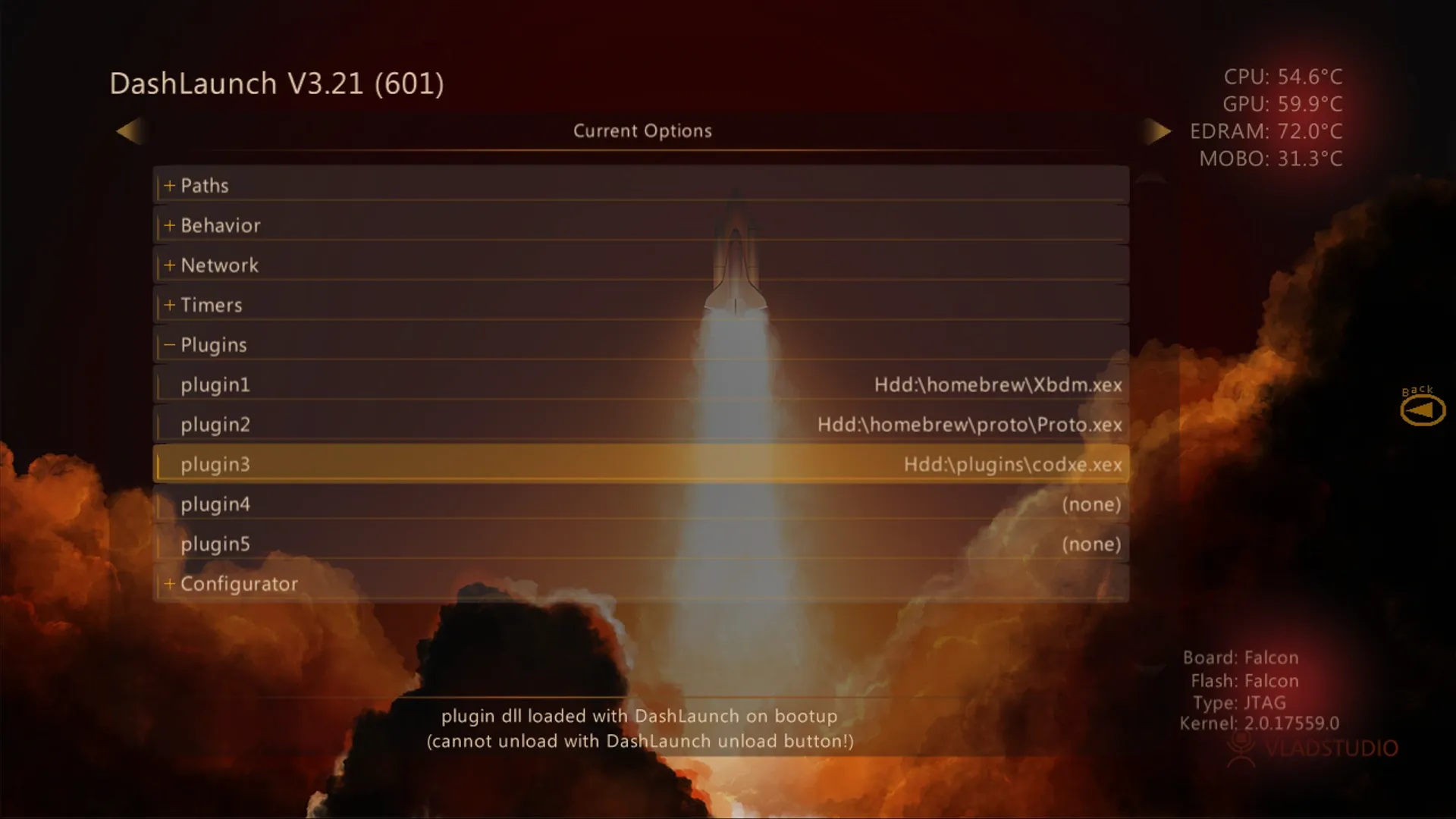
After saving your DashLaunch settings, reboot the console.
Install codxe on Xenia
Section titled “Install codxe on Xenia”codxe is required. Bot Warfare will not load without it.
Use this path when running Bot Warfare through Xenia instead of Xbox 360 hardware.
Download Xenia Canary Netplay:
Download Xenia Canary Netplay
Enable Plugins
Section titled “Enable Plugins”Xenia does not load plugins by default so it must be enabled via the config.
The config file appears beside the Xenia executable after Xenia has been opened once:
Directory
Xenia Canary Netplay- xenia_canary_netplay.exe
- xenia-canary-netplay.config.toml
Open the config file and change:
allow_plugins = falseallow_plugins = trueCopy Files
Section titled “Copy Files”Download the latest codxe release .zip. Do not use the standalone
codxe.xex download for Xenia. The .zip contains additional Xenia files that
Xbox 360 hardware users do not need.
Download codxe release zip
After extracting the codxe .zip, the folder should look similar to this:
Directorycodxe
Directoryiw3
DirectoryTitle Updates/
DirectoryTU4/
- TU_10LC1V6_0000004000000.0000000000101
Directoryxenia
Directorypatches/
- …
Directoryplugins/
- …
- …
Copy the contents of the codxe xenia folder into the same folder as
xenia_canary_netplay.exe.
When copied correctly, your Xenia folder should look similar to this:
Directory
Xenia Canary NetplayDirectorypatches/
- …
Directoryplugins/
- …
- xenia_canary_netplay.exe
- xenia-canary-netplay.config.toml
Install TU4
Section titled “Install TU4”In Xenia, press File > Install Content....
Navigate to the TU4 file inside the extracted codxe folder:
Directorycodxe
Directoryiw3
DirectoryTitle Updates/
DirectoryTU4/
- TU_10LC1V6_0000004000000.0000000000101
- …
- …
After TU4 is installed, boot default_mp.xex for multiplayer.
Install Bot Warfare
Section titled “Install Bot Warfare”Download the latest Bot Warfare release:
Download Bot Warfare
Extract the contents of the .zip into your Call of Duty 4 game folder.
When installed correctly, your folder should look like this:
Directory
Call of Duty 4 - Modern WarfareDirectory_codxe
- codxe.json
Directorymods
Directorybot_warfare
Directorymaps/
- …
Directoryscriptdata/
- …
Directoryscripts/
- …
- default_mp.xex
- …
Using Bot Warfare
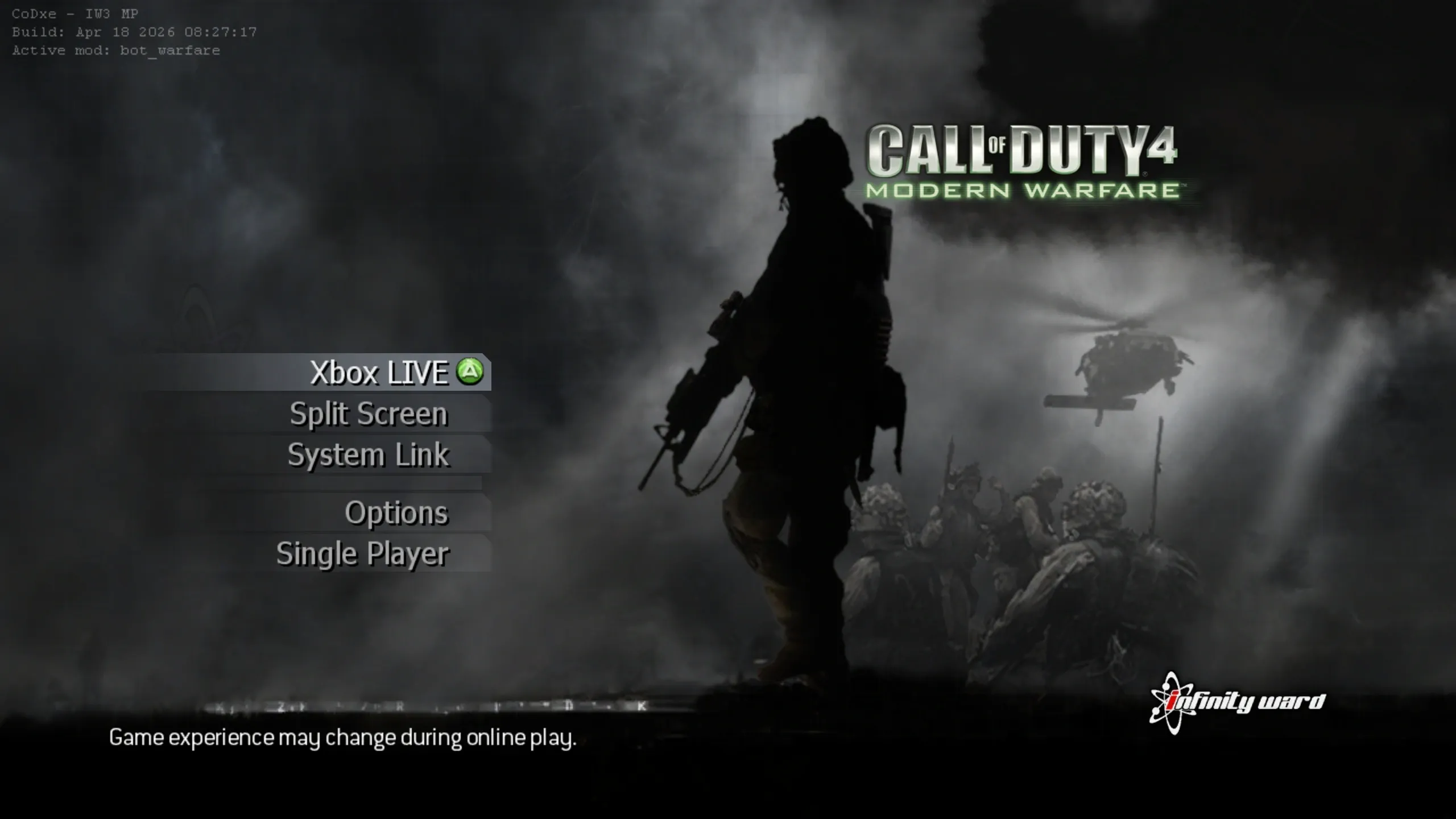
Section titled “Using Bot Warfare”Start Call of Duty 4.
If the mod loaded, you will see the Active mod: bot_warfare text in the top left:
Bot Limits
Section titled “Bot Limits”In-Game Menu
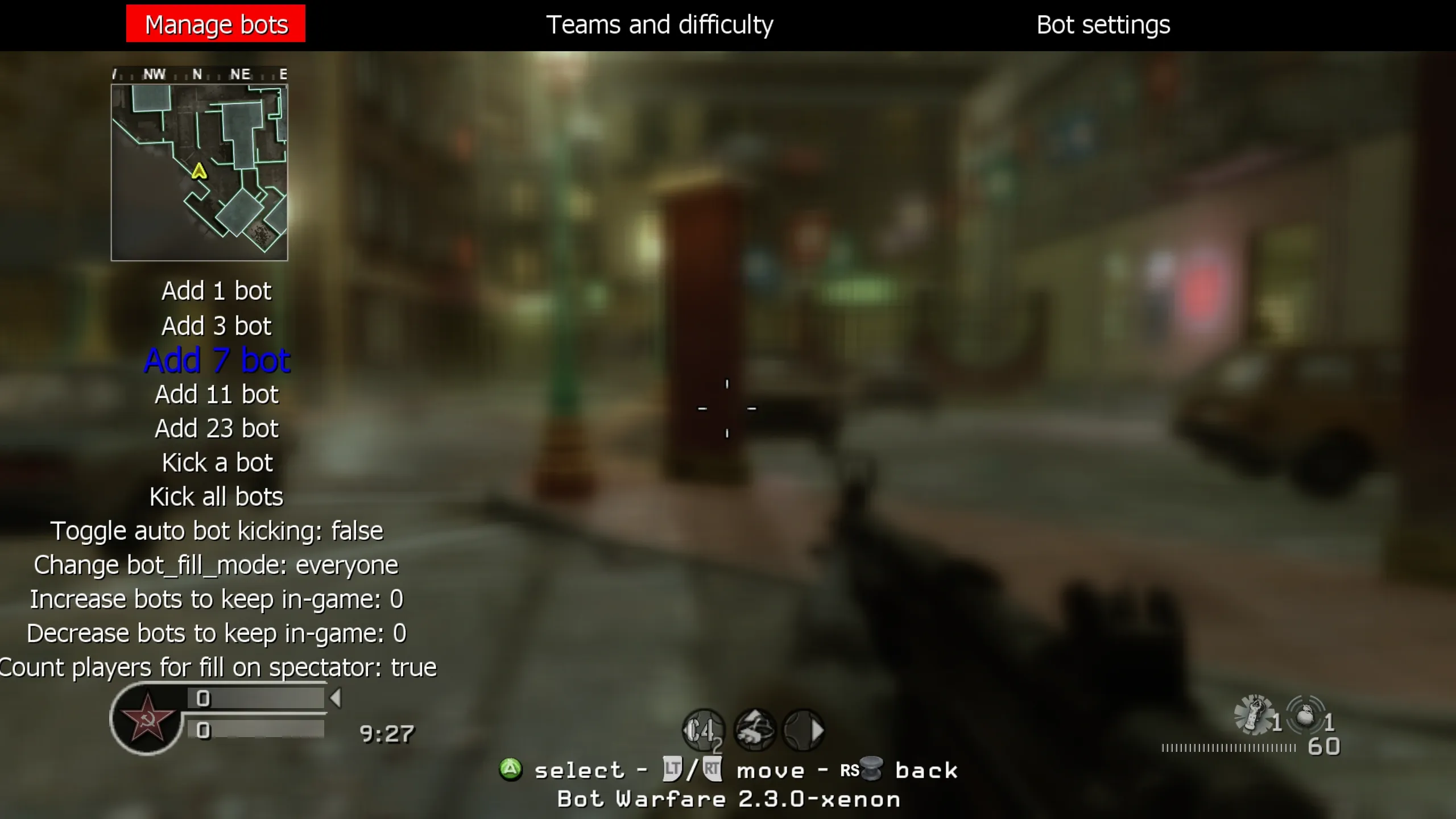
Section titled “In-Game Menu”Load a System Link or private match game and follow the instructions to open the menu.
Rename Bots
Section titled “Rename Bots”Bot names are stored in botnames.txt.
Open the file and add one bot name per line:
Directory
Call of Duty 4 - Modern WarfareDirectory_codxe
Directorymods
Directorybot_warfare
Directoryscriptdata
- botnames.txt
- …