Install CoD Xe
CoD Xe is the plugin that loads CoD Xenon mods on Xbox 360 and Xenia.
Follow this page once, then return to the game-specific guide for the title update and mod files.
What You Need
Section titled “What You Need”- An Xbox 360 that can run unsigned code: XDK, RGH, JTAG, or BadUpdate
- Or Xenia Canary Netplay on Windows
- A supported game extracted to a normal folder
Xbox 360
Section titled “Xbox 360”Download the standalone plugin:
Download CoD Xe
Set codxe.xex as a DashLaunch plugin.
Your plugin setup should look similar to this:
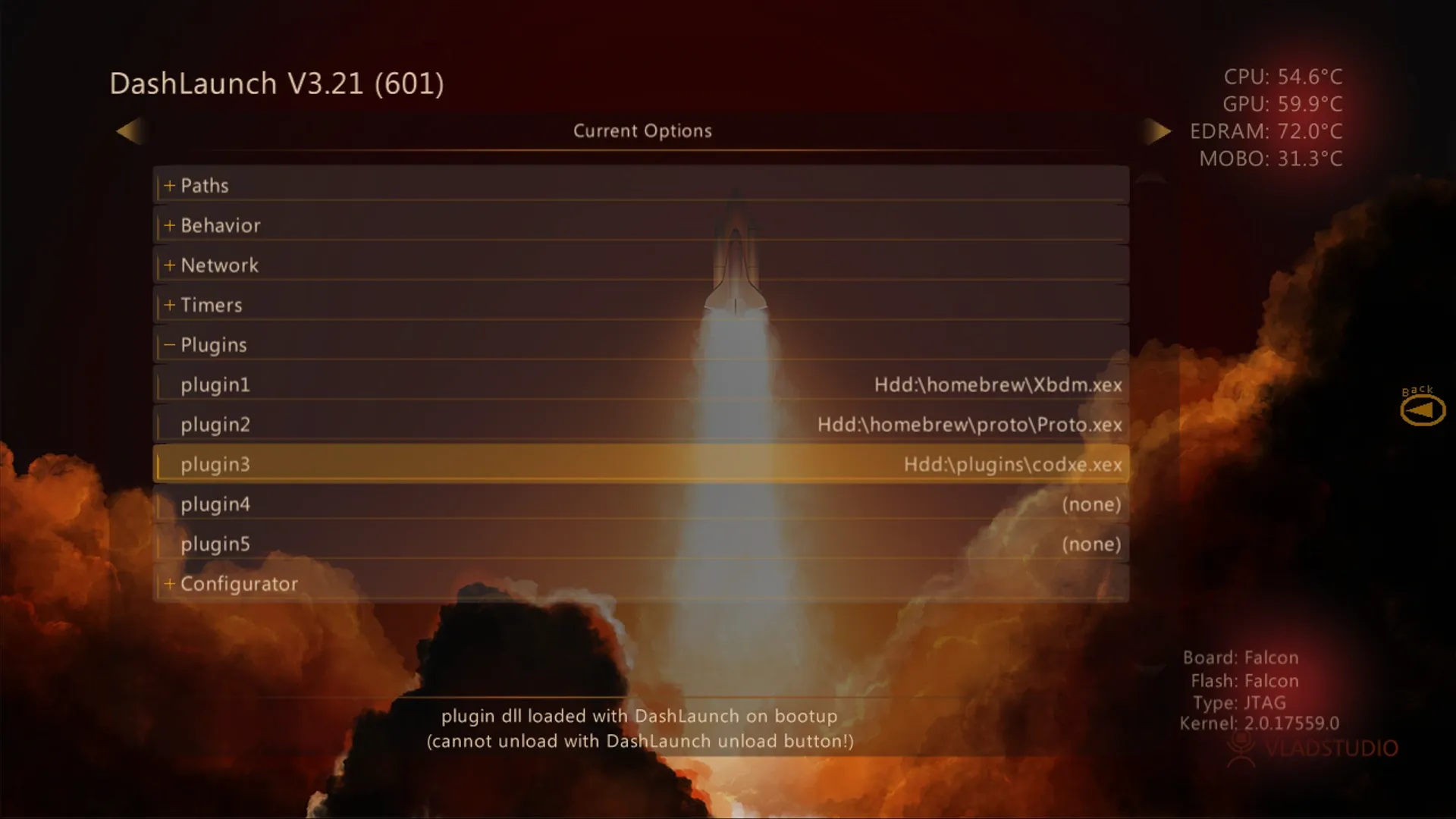
After saving your DashLaunch settings, reboot the console.
Use this path when running CoD Xe through Xenia instead of Xbox 360 hardware.
Download Xenia Canary Netplay:
Download Xenia Canary Netplay
Enable Plugins
Section titled “Enable Plugins”Open Xenia once so it creates the config file beside the executable:
Directory
Xenia Canary Netplay- xenia_canary_netplay.exe
- xenia-canary-netplay.config.toml
Close Xenia, open the config file, and change these values:
allow_plugins = falseallow_plugins = true
allow_game_relative_writes = falseallow_game_relative_writes = trueCopy Files
Section titled “Copy Files”Download the latest CoD Xe release .zip. Do not use the standalone
codxe.xex download for Xenia. The .zip contains additional Xenia files that
Xbox 360 hardware users do not need.
Download CoD Xe release zip
After extracting the CoD Xe .zip, the folder should look similar to this:
Directorycodxe
Directoryiw3/
- …
Directoryt4/
- …
Directoryxenia
Directorypatches/
- …
Directoryplugins/
- …
- …
Copy the contents of the extracted codxe folder’s xenia folder into the
same folder as xenia_canary_netplay.exe.
When copied correctly, your Xenia folder should look similar to this:
Directory
Xenia Canary NetplayDirectorypatches/
- …
Directoryplugins/
- …
- xenia_canary_netplay.exe
- xenia-canary-netplay.config.toml
Next Step
Section titled “Next Step”Install the title update required by the game guide you are following, then boot
the game’s multiplayer .xex.